
- 1 Start with the browser profile result, not the proxy vendor
- 2 Record the baseline before changing settings
- 3 Check whether WebRTC is exposing a different network path
- 4 Verify proxy assignment inside the profile
- 5 Compare IP, timezone, language, and geolocation as one environment
- 6 Decide whether to edit the profile, change the proxy, or rebuild
- 7 Retest safely after one change at a time
- 8 Final diagnosis checklist
Start with the browser profile environment. If a WebRTC test, fingerprint checker, or IP lookup shows inconsistent results, the first task is to identify which layer is inconsistent: profile settings, proxy routing, WebRTC exposure, or location signals. Replacing a profile before you know the failing layer can destroy useful session history and still leave the same leak in the next profile.
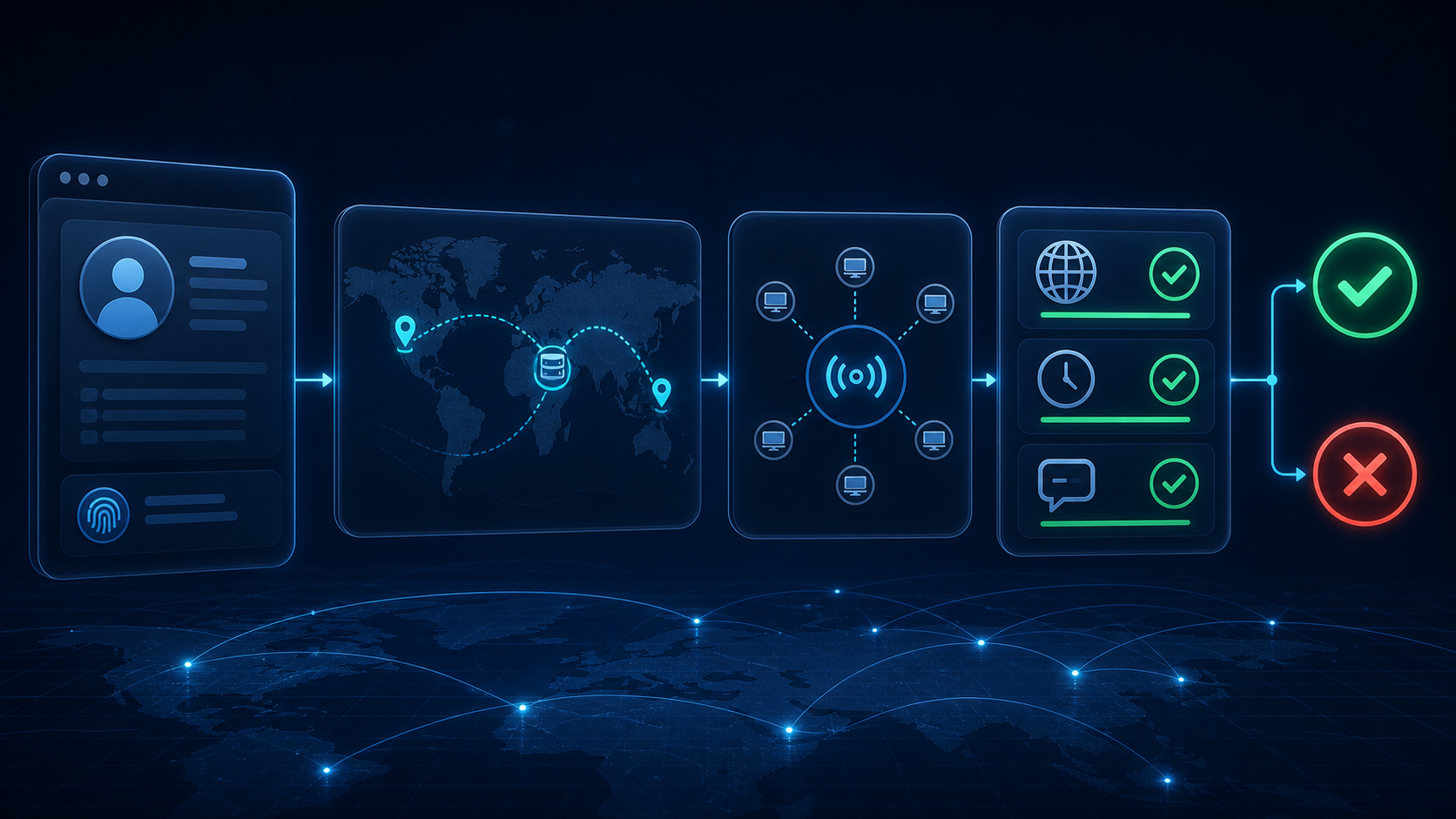
Use this order when an anti-detect browser profile uses a proxy but the test result still looks wrong.
Start with the browser profile result, not the proxy vendor
A proxy check only tells you which IP is visible through normal web requests. A browser profile check tells you whether the whole environment looks consistent. For anti-detect browser work, the second result matters more.
Open the same profile you plan to use operationally. Avoid testing in a clean local browser, a different profile, or a profile with a different proxy. Then record:
- public IP from a normal IP lookup;
- country, region, and city shown by the lookup;
- WebRTC local and public candidate results;
- timezone shown by the browser;
- browser language and accepted languages;
- operating system, screen, Canvas/WebGL, and other fingerprint signals if your checker reports them.
If the public IP matches the proxy but WebRTC shows another public IP, you have a WebRTC exposure problem. If the public IP is correct but timezone or language points to another region, you have an environment consistency problem. If the public IP is not the proxy at all, diagnose proxy assignment before changing fingerprint settings.
For profile-based work, use the same workflow and profile context you will actually run. If you are setting up profiles from scratch, start from a profile-based anti-detect browser setup rather than testing the proxy in isolation.
Record the baseline before changing settings
Write down the first test result before making changes. A simple baseline prevents circular troubleshooting.
Record these fields for the profile:
- profile name or internal ID;
- proxy type, host, port, and target country, without storing credentials in the note;
- IP lookup result;
- WebRTC result;
- timezone;
- browser language;
- geolocation permission state;
- test site used;
- time of test.
Keep credentials out of the record. The purpose is diagnosis, not secret storage.
A good baseline answer looks like this: “Profile A uses a US proxy. Normal IP lookup shows US. WebRTC shows no public non-proxy IP. Timezone is America/New_York. Browser language is en-US.” That is consistent enough to continue testing the target workflow.
A bad baseline answer looks like this: “Normal IP shows Germany, WebRTC shows a different country, timezone is Asia/Shanghai, language is en-US.” That result needs correction before the profile is used for account work.
Check whether WebRTC is exposing a different network path
WebRTC can use browser APIs and network paths that are separate from a normal HTTP page request. MDN describes WebRTC as a browser technology for real-time peer-to-peer communication, which is why it needs network candidate discovery rather than only standard page loading. Use the MDN WebRTC API reference as the authority source for the underlying browser feature.
In practical testing, focus on the result:
- If the WebRTC public IP is blank, blocked, or the same as the proxy IP, WebRTC is not the obvious leak.
- If WebRTC exposes your local network address only, treat it as a local-address visibility question, then check whether your target risk model cares about local candidates.
- If WebRTC exposes a public IP that differs from the proxy IP, treat it as a leak until proven otherwise.
- If the test site reports “WebRTC disabled” but your target workflow needs video, voice, or peer-to-peer features, test the actual workflow too. A blocked test result is not always the same as operational compatibility.
Make one change at a time. Change the profile’s WebRTC policy, retest, and compare the result with the baseline. If the proxy IP stays the same but WebRTC changes from a different public IP to blank or proxy-aligned, the failing layer was WebRTC handling, not the proxy vendor.
Verify proxy assignment inside the profile
If the normal public IP does not match the intended proxy, inspect the profile’s proxy assignment before editing fingerprint settings.
Check these items in order:
- the proxy is attached to the correct browser profile;
- host and port are entered in the correct fields;
- protocol matches the proxy service requirement;
- username and password are current;
- the proxy test inside the profile succeeds;
- the profile was restarted after the proxy setting changed;
- no system-level VPN or local proxy is overriding the browser route.
For Lalicat profile setup, the relevant next step is the proxy settings inside each browser profile rather than a generic proxy-buying checklist. The article’s diagnostic scope is profile routing and consistency: if the profile is not using the assigned proxy, WebRTC and fingerprint checks will be noisy no matter how good the proxy is.
Compare IP, timezone, language, and geolocation as one environment
A profile can pass a basic IP test and still look inconsistent. The common mismatch is not one signal by itself; it is the combination.
Use this decision order:
- IP country and target account region should make sense together.
- Timezone should match or plausibly fit the IP region.
- Browser language should fit the account workflow and target region.
- Geolocation permission should be blocked, aligned, or intentionally controlled.
- DNS and WebRTC results should not introduce a second country or network identity.
- Hardware and browser fingerprint signals should remain stable across sessions unless you intentionally rebuild the profile.
A US proxy with a US timezone and en-US language is easier to explain than a US proxy with an Asian timezone and a European geolocation result. The second profile may still load websites, but it creates unnecessary inconsistency for account environments that compare multiple signals.
Decide whether to edit the profile, change the proxy, or rebuild
Use the failing layer to choose the fix.
Edit the profile when:
- WebRTC policy is the only inconsistent signal;
- timezone or language is the only mismatch;
- geolocation permission is exposing an unintended location;
- the profile is new and has no valuable session history.
Change or reassign the proxy when:
- normal IP lookup does not show the assigned proxy;
- the proxy test fails inside the profile;
- the proxy country no longer matches the account region you need;
- proxy latency or connection instability causes repeated profile launch failures.
Rebuild the profile when:
- several fingerprint signals were changed randomly and you no longer have a clean baseline;
- the profile was used with multiple unrelated proxy regions;
- session history is not valuable;
- you need a clean environment for a different account group.
Preserve the profile when the only issue is an explainable test-site warning that does not reproduce in the target workflow. A test result is a diagnostic signal; it is not automatically a reason to discard a profile.
Retest safely after one change at a time
After changing one setting, close the browser profile, reopen it, and repeat the same test sequence. Use the same test sites where possible. Change only one layer per retest:
- proxy assignment;
- WebRTC policy;
- timezone;
- language;
- geolocation permission;
- fingerprint profile rebuild.
If several settings change at once, the next result may improve but you will not know which change fixed it. That makes the profile harder to maintain later.
For team workflows, save the baseline and final result in the profile note or internal SOP. The next operator should know why a profile uses a specific proxy region, WebRTC setting, timezone, and language. If the issue appears again, they can compare against the last known-good result instead of starting from a blank diagnosis.
Final diagnosis checklist
Before using the profile for account work, confirm:
- normal IP lookup matches the assigned proxy;
- WebRTC does not expose a different public IP;
- timezone and language fit the proxy/account region;
- geolocation permission is controlled;
- the same profile passes the same checks after restart;
- only one change was made between test rounds;
- the final setup is documented without storing proxy credentials.
If all checks pass, the profile is ready for a small operational test. If one check still fails, fix that layer first. The goal is a consistent profile environment, not a perfect score on every fingerprint test site.