
- 1 What Browser Fingerprint Signals Actually Mean
- 2 Signal 1: Device and Browser Basics
- 3 Signal 2: IP, Proxy, and Location Consistency
- 4 Signal 3: Canvas, WebGL, and Graphics Behavior
- 5 Signal 4: WebRTC and Network Leaks
- 6 Signal 5: Timezone, Language, and Region
- 7 Signal 6: Cookies, Storage, and Session Continuity
- 8 Signal 7: Automation Footprints
- 9 A Practical Fingerprint Review Checklist
- 10 Common Mistakes to Avoid
- 11 Final Takeaway
When multi-account operators talk about browser fingerprinting, the conversation often jumps straight to one question: does this profile pass a fingerprint check?
That question is useful, but it is too narrow. A browser fingerprint is not one switch, one score, or one magic setting. It is a group of signals that websites may compare against account history, network location, device behavior, and session patterns. If a team only looks for a green result on one test page, it can miss the operational problems that appear later during login, payment, posting, or account handoff.
This guide explains the main browser fingerprint signals multi-account teams should understand before they scale profile operations. The goal is not to promise invisibility or override platform checks. The goal is to build a more consistent account environment and reduce avoidable profile mistakes.
What Browser Fingerprint Signals Actually Mean
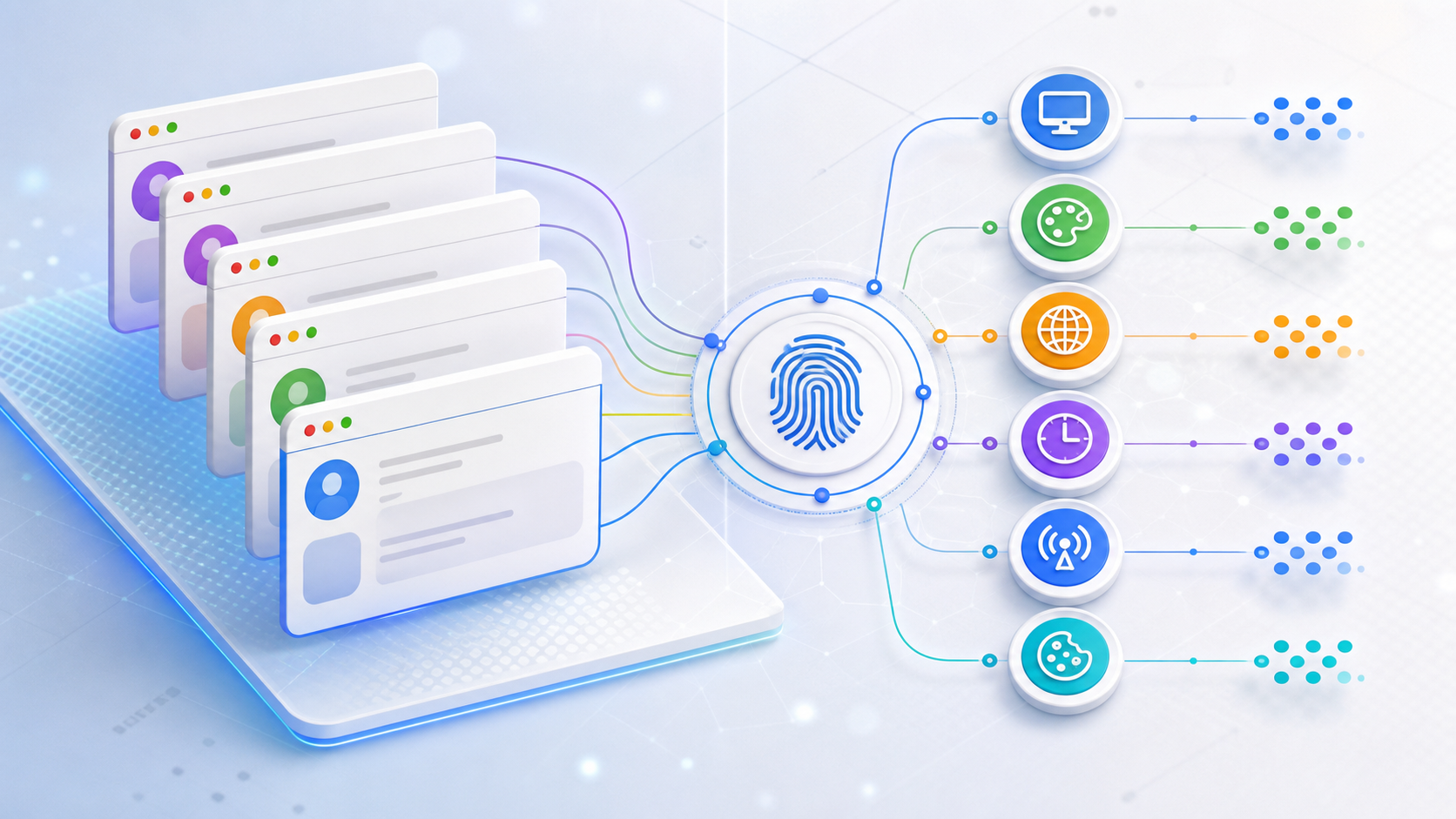
A browser fingerprint is a set of observable details a website can read from the browser and device environment. Some signals come from the browser itself. Others come from the network, operating system, graphics stack, timezone, language, plugins, storage behavior, or automation setup.
For a single account, one unusual signal may be harmless. For dozens or hundreds of accounts, repeated mismatches become easier to notice. That is why teams using an antidetect browser workspace should think in layers instead of treating fingerprint checks as a one-time setup step.
Signal 1: Device and Browser Basics
The first layer includes browser version, operating system, screen size, hardware concurrency, device memory, fonts, and user agent details. These signals should make sense together.
A profile that claims to be a desktop Chrome browser should not behave like a mobile device. A profile that presents one operating system should not expose fonts or device hints that strongly suggest another. Small inconsistencies may not always break a session, but they make troubleshooting harder when account behavior changes.
Before scaling profiles, document the expected device pattern for each account group. Do not mix random desktop, mobile, and region settings unless the account history supports that behavior.
Signal 2: IP, Proxy, and Location Consistency
Network context is not the same as browser fingerprint, but websites often compare them together. IP country, timezone, language, and account activity should be coherent.
If a profile uses one region today and another region tomorrow, the browser fingerprint may still look technically valid while the account context looks unstable. This is why browser and IP separation should be planned as part of the profile strategy, not added after problems appear.
For team operations, the practical rule is simple: avoid changing proxy region, timezone, and language independently. Treat them as a bundle attached to the profile.
Signal 3: Canvas, WebGL, and Graphics Behavior
Canvas and WebGL signals come from how the browser and graphics environment render visual output. These signals can differ across hardware, drivers, operating systems, and browser configurations.
Teams often over-focus on whether a canvas result is unique. The more useful question is whether the result is stable and plausible for the profile. A profile should not keep changing its graphics behavior between normal sessions unless there is a clear reason.
When reviewing multi-account safety models, include graphics consistency in the checklist. It is one of several layers that should remain stable when the same account is opened by different team members.
Signal 4: WebRTC and Network Leaks
WebRTC can expose network-related information that may not match the proxy context. This is especially important when an account relies on a specific proxy region or when multiple profiles run on the same machine.
A WebRTC issue does not always mean an account will fail immediately. But it can create a mismatch between the visible proxy and the network hints exposed by the browser. For multi-account operations, that mismatch is worth checking before a profile is used for important work.
Signal 5: Timezone, Language, and Region
Timezone and language settings are simple, but they are easy to forget. A profile using a United States proxy with an unrelated timezone or language setting may still open pages normally, but it can look less coherent during login and account review.
Profile setup should include a region checklist: proxy location, timezone, language, keyboard/input expectations, and the type of platform activity the account performs. For operators who need a repeatable setup process, the browser profile configuration flow is a better reference point than ad hoc per-account edits.
Signal 6: Cookies, Storage, and Session Continuity
Cookies and local storage are not fingerprint signals in the narrow technical sense, but they are part of the account environment. If storage is copied, cleared, or reused without a plan, the browser profile can become inconsistent with the account’s recent session history.
Do not treat cookies as a portable identity file. A profile needs stored data, proxy context, browser fingerprint settings, and usage history to remain aligned. If a session must be handed to another operator, the team should hand over the profile context, not only exported data.
Signal 7: Automation Footprints
Automation can add another layer of signals. Selenium, Puppeteer, Playwright, local APIs, and remote debugging can all change how a browser starts or behaves if configured carelessly.
For teams that use automation, the question is not only whether a script runs. The question is whether the profile still opens with the expected browser environment, proxy context, and session state. If automation starts a profile differently from manual work, the team may create a split between normal account behavior and automated account behavior.
When automation is required, keep a separate setup checklist and use a stable local API automation workflow rather than mixing manual and scripted startup methods without review.
A Practical Fingerprint Review Checklist
- Confirm the profile has a defined account purpose and region.
- Check browser version, operating system, screen, fonts, and device hints for consistency.
- Keep proxy, timezone, and language aligned.
- Review Canvas and WebGL behavior for stability, not only uniqueness.
- Check WebRTC exposure before important account activity.
- Keep cookies, local storage, and session state inside the correct profile context.
- Test automation startup separately from manual browsing.
- Record profile changes before handing the account to another operator.
Common Mistakes to Avoid
The first mistake is changing too many signals at once. If a profile fails after a proxy, timezone, browser version, and storage change, the team cannot tell which layer caused the issue.
The second mistake is using the same setup for every account. Multi-account work needs repeatable rules, but each account group may need its own region, platform, and activity pattern.
The third mistake is treating fingerprint checks as a guarantee. A clean check result is useful evidence, not a promise that every platform will accept every action. Teams still need stable profile usage, responsible account behavior, and clear handoff records.
Final Takeaway
Browser fingerprint signals are easier to manage when teams stop treating them as isolated settings. Device hints, proxy context, timezone, WebRTC, canvas, storage, and automation startup all belong to the same account environment.
For multi-account teams, the practical goal is consistency. Build profiles with clear rules, check the signal layers before scaling, and avoid changing browser, proxy, and session context without a record. That approach gives operators a cleaner way to diagnose problems before they turn into account-level failures.