
- 1 What a Profile Lock Should Protect
- 2 Lock Trigger 1: An Active Login Session
- 3 Lock Trigger 2: Fingerprint or Proxy Changes
- 4 Lock Trigger 3: Failed Login or Verification Prompt
- 5 Lock Trigger 4: Automation or Script Runs
- 6 Profile Lock Decision Table
- 7 Fields to Record Before Unlocking
- 8 What Not to Lock Forever
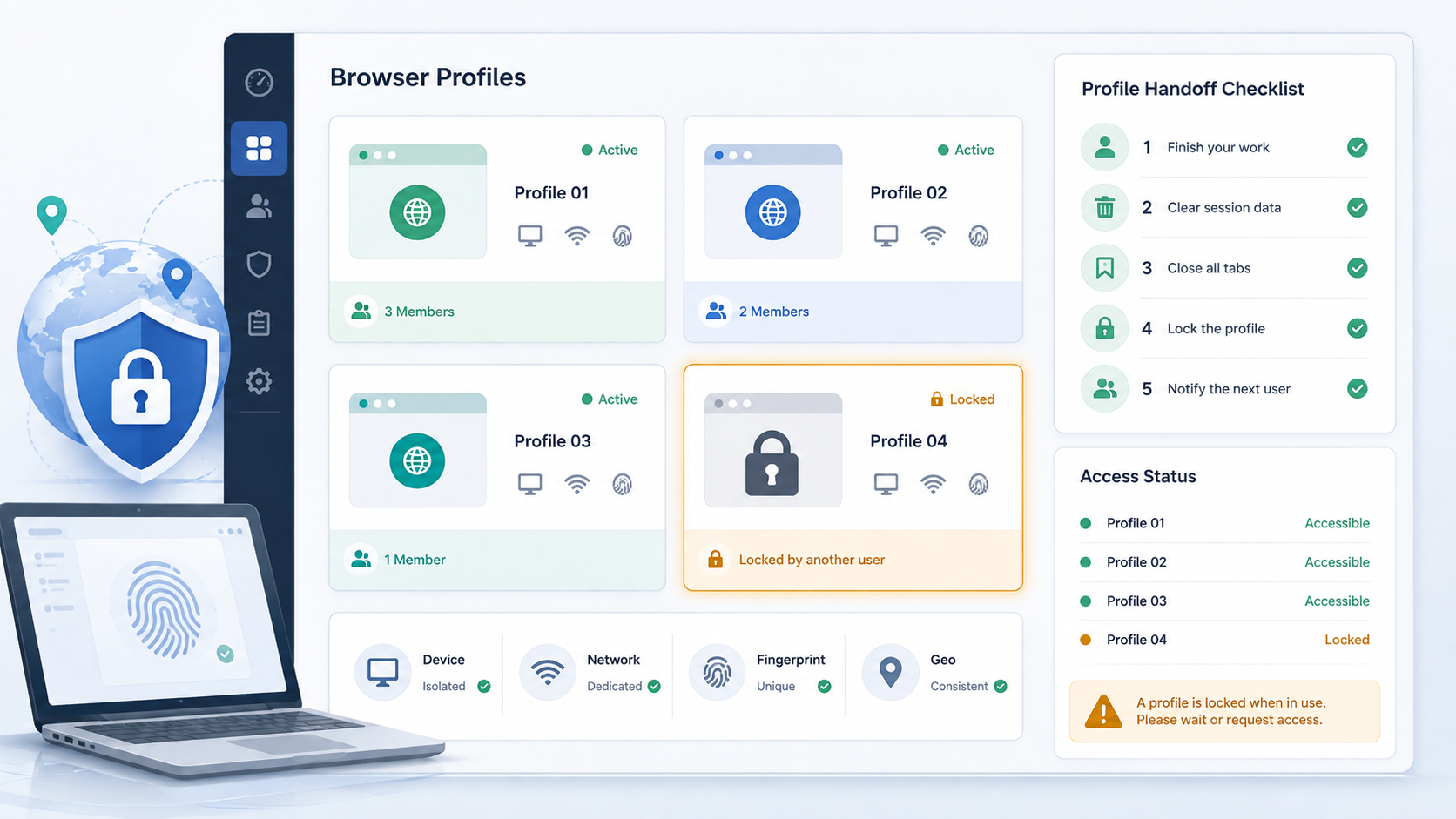
Shared browser profiles need clear lock rules because the same account environment can be touched by more than one operator, script, or review step. A profile lock is not a punishment or a permanent freeze. It is a short operational stop that prevents two people from changing session state, fingerprint settings, proxy route, or profile notes at the same time.
The practical question is simple: should this profile be opened now, or should access pause until the last change is explained? Profile lock rules give teams a repeatable answer before a profile is reused, transferred, or launched for sensitive account work.
What a Profile Lock Should Protect
A useful lock protects the working state of the profile. That includes the last login result, active tabs, proxy route, fingerprint baseline, operator notes, and any unresolved warning shown during the previous session. If those fields are unclear, the next operator cannot know whether a change came from the account platform, the browser profile, the network route, or another teammate.
The lock should sit inside the same operating discipline as browser profile configuration. The team should know who owns the profile, why it exists, which account it supports, and what conditions must be true before someone else opens it.
Lock Trigger 1: An Active Login Session
Lock a profile while an operator is logged in and actively completing account work. Two people should not open the same account environment at the same time, even if both have permission. Concurrent access can change cookies, local storage, notification prompts, account activity timestamps, and recovery state in ways that are hard to reconstruct later.
- Open: no active session, previous work closed normally, and notes are current.
- Lock: an operator is still working or has not confirmed handoff.
- Review: the profile appears closed, but the last result or next action is missing.
Lock Trigger 2: Fingerprint or Proxy Changes
When a profile’s fingerprint settings or proxy route changes, access should pause until the change is recorded and checked. This does not mean every change is wrong. It means the next operator should not inherit an unexplained device, network, language, timezone, or WebRTC condition.
Teams that use an advanced fingerprint review workflow should make lock status visible before profile reuse. If the profile moved to a different proxy, confirm the route through the normal proxy IP configuration path before reopening access.
Lock Trigger 3: Failed Login or Verification Prompt
A failed login attempt, unusual verification prompt, password reset request, or unexplained security screen should lock the profile until the team records what happened. The goal is not to force another retry. The goal is to preserve context so the next action is based on evidence instead of memory.
Record the platform screen, time, operator, proxy route, fingerprint baseline, and last successful action. If the cause is unclear, do not hand the profile to another person as a routine task. Treat it as a review item and reopen only after the owner defines a safe next step.
Lock Trigger 4: Automation or Script Runs
Profiles launched through scripts need locks because automation can leave tabs, downloads, storage entries, permission prompts, or partial task state behind. A script run should have a start time, owner, intended account, expected result, and completion note. Without those fields, a human operator may open a profile that is still mid-process.
If profiles are started through an API, align the lock record with the profile launch process. A profile should not be marked available until the script has ended, the result is known, and manual follow-up is clearly assigned.
Profile Lock Decision Table
| Situation | Access decision | Required record | Unlock condition |
|---|---|---|---|
| Operator is still logged in | Lock | Current owner and task state | Owner confirms handoff or closure |
| Fingerprint setting changed | Review lock | Changed field, reason, checker | Baseline check passes or rollback is documented |
| Proxy route changed | Review lock | Protocol, host, port, outbound IP, test result | Route matches intended account environment |
| Verification prompt appeared | Lock | Screen type, time, previous action, operator | Owner defines next action and stop condition |
| Automation run unfinished | Lock | Script name, owner, start time, expected result | Run ends and profile state is checked |
| Routine work completed cleanly | Open | Completion note and next owner if needed | No unresolved prompt or unexplained change |
Fields to Record Before Unlocking
Before a profile is unlocked, the owner should update the record with enough detail for another person to continue without guessing. Keep the record short, but make it operational.
- Profile ID, account purpose, current owner, and lock reason.
- Last login result, last visible account screen, and any unresolved prompt.
- Fingerprint or proxy fields changed since the last successful session.
- Automation status if a script or API launch touched the profile.
- Next allowed action, stop condition, and person responsible for review.
For teams onboarding newer operators, a written profile reuse checklist for new operators helps turn lock status into a routine check instead of a private habit.
What Not to Lock Forever
Locks should not become a place where unclear work disappears. If a profile is locked for more than the team’s normal review window, assign an owner and classify the reason: active work, unresolved account prompt, configuration change, automation residue, or missing notes. Each reason should have a next action.
The strongest lock rule is time-bound and evidence-based. Lock the profile when access would create confusion. Unlock it when the working state is clear, the owner has recorded the meaningful change, and the next operator knows exactly what to do first.