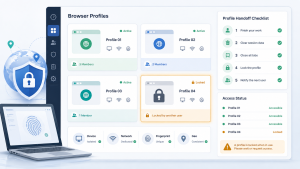

Screen resolution looks like a small profile setting until a browser profile moves to another operator, device, or workstation. A profile that was stable on one screen can open with a different viewport size, display scale, monitor count, or maximized-window state on the next machine. Those changes can affect the browser fingerprint that websites observe during routine account work.
The useful question is not whether every resolution must stay frozen forever. The practical question is whether the profile opens in a display environment that still matches the account’s normal working pattern. These screen resolution fingerprint checks give teams a short verification path before they reuse or hand off a browser profile.
What to Check First
Start with the fields that can change when a profile moves between machines. Check the physical screen resolution, browser viewport size, device pixel ratio, zoom level, display scaling, window position, and whether the browser opens maximized, full screen, or restored. These fields should be reviewed along with the normal browser profile configuration record.
- Screen resolution: the operating system display size available to the browser.
- Viewport size: the inner browser area after toolbars, tabs, sidebars, and window borders are accounted for.
- Display scale: operating system scaling that can change visible dimensions even on the same monitor.
- Window state: maximized, restored, full screen, or a scripted launch size.
Why Resolution Drift Happens During Profile Moves
Resolution drift usually comes from the workstation, not from the profile itself. A laptop display, external monitor, remote desktop session, virtual machine, or different display scaling value can change what the browser reports. Even when the same profile data is intact, the surrounding device context may not be the same.
Teams running an advanced fingerprint review workflow should treat screen size as a consistency field. It belongs next to timezone, language, font, WebRTC, proxy route, and hardware-like signals when deciding whether a profile is ready for reuse.
The Pre-Move Baseline
Before moving a profile, record the display environment that last produced a normal session. The record does not need to be long, but it should be specific enough that another operator can compare the next launch against it.
- Profile ID and account purpose.
- Device or workstation name used during the last clean session.
- Operating system display resolution and scaling value.
- Browser viewport size after the profile opens.
- Browser zoom level, window state, and monitor setup.
If proxy settings also change during the move, review the proxy IP configuration separately. Do not mix display drift and network drift into one vague handoff note.
Launch Check on the New Device
On the receiving device, open the profile and compare the live values against the baseline before starting account work. If the profile is launched by script or local interface, make sure the launch size is intentional and repeatable. Teams that use API-based starts should align this with the normal profile launch process.
- Confirm the expected monitor and display scale are active.
- Open the browser in the intended window state.
- Check viewport width and height after the page fully loads.
- Verify browser zoom and avoid accidental zoom shortcuts.
- Record any mismatch before logging in or continuing account activity.
Screen Resolution Decision Table
| Check item | Pass condition | Mismatch signal | Safe next action |
|---|---|---|---|
| Operating system resolution | Matches the recorded workstation pattern | Different monitor, laptop panel, or remote desktop size | Pause and confirm whether this device is approved for the profile |
| Display scaling | Same scale as the baseline or intentionally documented | 125%, 150%, or custom scale changes viewport behavior | Record the scale and retest before account work |
| Browser viewport | Expected inner width and height after launch | Toolbar, sidebar, or window border changes visible page size | Restore the intended launch state and check again |
| Zoom level | Default or documented profile value | Page appears larger or smaller than normal | Correct zoom before continuing |
| Window state | Profile opens in the planned state | Full screen, maximized, or restored state differs from baseline | Set a repeatable state and document the change |
| Monitor setup | Same single or multi-monitor pattern as expected | External monitor or remote session changes available dimensions | Use the approved setup or mark the profile for review |
When a Difference Is Acceptable
A screen resolution difference is acceptable when it is expected, documented, and repeatable. For example, a team may intentionally move a profile from one approved workstation to another with a known display setup. In that case, the important step is to record the new baseline before routine reuse.
A difference is not acceptable when the operator cannot explain why the browser opened differently. Unexplained display changes should be treated like other profile reuse checklist for new operators items: pause, compare, record, then continue only after the state is clear.
What to Record After the Move
After the profile opens correctly on the new device, update the handoff note. Include the date, operator, device, resolution, display scale, viewport size, window state, and whether the profile was opened manually or through a launch script. If the value changed, write the reason instead of leaving a bare number.
This turns resolution checking into a repeatable part of account environment management. The goal is not to promise that a single setting controls trust. The goal is to keep profile moves reviewable so teams can identify ordinary workstation differences before they become confusing account-session evidence.