
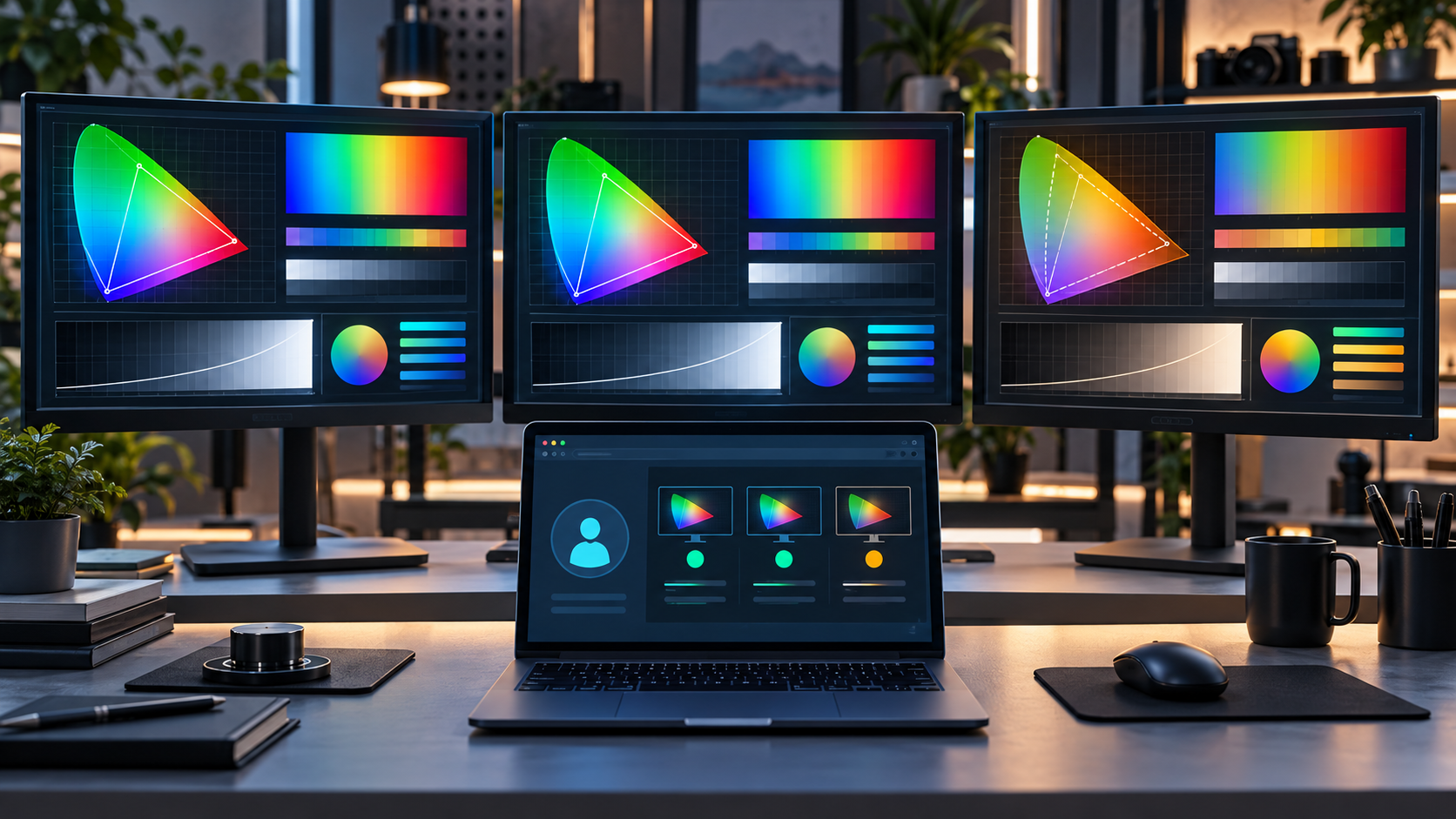
- 1 What Each Display Signal Describes
- 2 Build A Matched-Condition Baseline
- 3 Read Gamut Queries As Nested Capability Tiers
- 4 Separate HDR Capability From Active Presentation
- 5 Check The Physical Display Path First
- 6 Retest In A Controlled Order
- 7 Compare Display Signals With Related Fingerprint Fields
- 8 Keep Network Changes Out Of The Display Test
- 9 Classify The Reuse Decision
- 10 Define Pass, Fail, And Stop Conditions
- 11 Record A Compact Evidence Set
- 12 Common Diagnostic Mistakes
- 13 A Practical Review Order
Color gamut and dynamic range drift occurs when a browser profile reports display capabilities that no longer match the approved monitor, operating-system settings, browser build, or session type. Before reuse, compare screen.colorDepth, screen.pixelDepth, CSS color-gamut, and CSS dynamic-range under matched conditions. Pause when a profile moves from sRGB-only to P3 capability, standard to high dynamic range, or a different color depth without a documented environment change.
Preserve the first mismatch before changing display settings. Record the profile ID, workstation, monitor model and connection, operating-system display mode, browser build, graphics driver, remote-session state, test origin, and every observed value. These fields describe related but different display capabilities, so one value cannot stand in for the complete baseline.
What Each Display Signal Describes
| Signal | What It Describes | Limit |
|---|---|---|
| screen.colorDepth | Bits per pixel available for displaying colors | Does not identify the monitor’s exact gamut or active HDR mode |
| screen.pixelDepth | Pixel color depth reported by the screen object | Often matches colorDepth and should not be treated as independent hardware proof |
| color-gamut: srgb | Approximate support for sRGB or a wider gamut | A broad capability tier, not a calibration measurement |
| color-gamut: p3 | Approximate support for Display P3 or wider | Can depend on user agent and output device support |
| color-gamut: rec2020 | Approximate support for Rec. 2020 or wider | Does not prove full physical coverage of the entire color space |
| dynamic-range: high | High brightness, contrast, and color-depth capability | Describes capability, not necessarily whether HDR output is active for this page |
Compare the set with the approved profile baseline configuration. A 24-bit color depth can coexist with either sRGB or P3 reporting, so a stable colorDepth value does not cancel a gamut change.
Build A Matched-Condition Baseline
- Open the assigned profile on its approved workstation.
- Record the browser, operating-system, and graphics-driver versions.
- Record monitor model, connection type, dock or adapter, and primary-display assignment.
- Record SDR or HDR system mode and any remote or virtual session.
- Capture colorDepth and pixelDepth.
- Test sRGB, P3, and Rec. 2020 gamut queries separately.
- Test standard and high dynamic-range queries.
- Repeat the capture in the same browser, origin, and session.
Keep the current workstation version baseline with the result. A capability capture without monitor and session context is too ambiguous for a reuse decision.
Read Gamut Queries As Nested Capability Tiers
The gamut values are ordered by increasing range. A device that matches P3 should also satisfy the less demanding sRGB tier, while Rec. 2020 is a wider tier than P3. Record every query result rather than storing one label, because an impossible or unstable combination can reveal a test or environment problem.
Do not interpret a P3 match as a calibration certificate or proof of exact panel coverage. The browser and output device expose an approximate capability. Use the result for consistency review, not for professional color-validation claims.
Separate HDR Capability From Active Presentation
A high dynamic-range match describes supported brightness, contrast, and color-depth capability. It does not by itself prove that the operating system is currently presenting this page in an active HDR mode. Monitor support, cable bandwidth, graphics settings, power state, and session type can all affect the effective path.
Record system HDR configuration separately from the browser query. Treat a mismatch as a reason to check the display path, not as proof that the profile is unsafe or that a website reached a particular account conclusion.
Check The Physical Display Path First
- Was the profile moved to a different monitor or workstation?
- Did the primary display change?
- Was a dock, cable, adapter, KVM, or capture device added?
- Did the graphics driver or operating system update?
- Was HDR enabled, disabled, or limited by power mode?
- Did a remote desktop or virtual display replace the local output?
- Was the browser launched under a different graphics backend?
These checks explain many legitimate changes. Preserve the old and new values before reconnecting hardware, changing drivers, or switching the primary monitor.
Retest In A Controlled Order
- Confirm the profile and workstation IDs.
- Repeat the same-origin capture twice without changing settings.
- Restart only the browser and repeat.
- Verify the primary monitor and system display mode.
- Repeat with the approved cable, dock, and monitor path unchanged.
- If automation normally opens the profile, use one controlled profile launch and compare results.
- Change one display or session condition at a time only when diagnosis requires it.
This order separates a one-run test error from stable browser output, then from monitor, driver, and session effects. Broad resets remove evidence and make the next result harder to interpret.
Compare Display Signals With Related Fingerprint Fields
Review color capability beside screen size, available screen area, device pixel ratio, viewport, operating system, platform, graphics renderer, browser build, and workstation assignment. A changed monitor can alter several related fields together. A lone gamut change with no hardware, driver, browser, or session explanation deserves a closer look.
Use the advanced fingerprint review to evaluate the complete environment. Do not force every profile to report the same display capability; the goal is coherence with its assigned workstation.
Keep Network Changes Out Of The Display Test
A proxy route does not directly determine monitor color capability. Keep the assigned proxy route configuration unchanged while diagnosing display drift so the operator does not combine unrelated environment changes in one test.
If a remote workspace or streamed desktop is involved, record that session as display-path context rather than as a proxy effect. Test the local and remote sessions separately and do not merge their baselines.
Classify The Reuse Decision
| Result | Evidence | Decision |
|---|---|---|
| Consistent | Color depth, gamut, dynamic range, monitor, and session records describe one approved environment | Continue the broader reuse checklist |
| Expected display change | Signal movement matches a documented monitor, cable, driver, HDR, or workstation change | Review and update the baseline after approval |
| Session-specific | A remote or virtual display explains the difference | Keep separate local and remote baselines |
| Contradictory drift | Stable browser values conflict with the assigned display path or with each other | Pause reuse and inspect configuration |
| Transient | The mismatch disappears after a browser-only retest and cannot be reproduced | Record it and complete one additional controlled run |
| Unresolved | The monitor, HDR mode, driver, or session record is incomplete | Hold and escalate to the profile owner |
Define Pass, Fail, And Stop Conditions
Pass when two matched-condition captures are stable and the complete signal set agrees with the approved display path. Fail when reproducible values contradict the monitor and session record without an approved change. Treat the result as ambiguous when the primary monitor, HDR mode, remote-session state, or graphics path is unknown.
Stop before reuse when the profile moved workstations without a handoff, gamut or dynamic range changes repeatedly, nested query results are incoherent, or the team would need to guess which baseline is correct.
Record A Compact Evidence Set
- Profile ID, owner, and workstation
- Monitor model, connection, dock or adapter, and primary-display assignment
- Operating system, browser, and graphics-driver versions
- Local, remote, or virtual session state
- System SDR or HDR configuration
- colorDepth, pixelDepth, gamut, and dynamic-range results
- Test origin, timestamp, repeated result, and changed condition
- Reviewer, baseline decision, and stop condition
Attach the evidence to the profile reuse checklist. Another operator should be able to reproduce the decision without opening the profile for normal work.
Common Diagnostic Mistakes
- Using colorDepth as proof of sRGB, P3, or Rec. 2020 support.
- Treating HDR capability as proof that HDR presentation is currently active.
- Comparing a local monitor with a remote or virtual display session.
- Changing the monitor, driver, and browser before preserving the first mismatch.
- Assuming a wider gamut is always suspicious or always better.
- Approving reuse without monitor and connection records.
A Practical Review Order
Preserve the first result, confirm profile and workstation identity, record the display path, repeat the same-origin capture, compare color depth with gamut and dynamic range, check driver and session changes, review related screen and graphics fields, classify the result, and document the decision. Only then continue normal profile work.
The goal is a coherent, reviewable display environment rather than a particular gamut or HDR result. Stable evidence and explicit stop conditions make display-capability drift manageable without unsupported claims about anonymity, safety, or account outcomes.