
- 1 What Each Input Signal Actually Describes
- 2 Build A Matched-Condition Baseline
- 3 Use A Field Matrix Instead Of One Value
- 4 Do Not Treat A Positive Touch Count As Active Touch Use
- 5 Separate Primary And Any-Device Results
- 6 Check Hardware And Session Changes First
- 7 Retest In A Controlled Order
- 8 Compare Touch Signals With The Wider Profile
- 9 Classify The Reuse Decision
- 10 Define Pass, Fail, And Stop Conditions
- 11 Record A Compact Evidence Set
- 12 Common Diagnostic Mistakes
- 13 A Practical Review Order
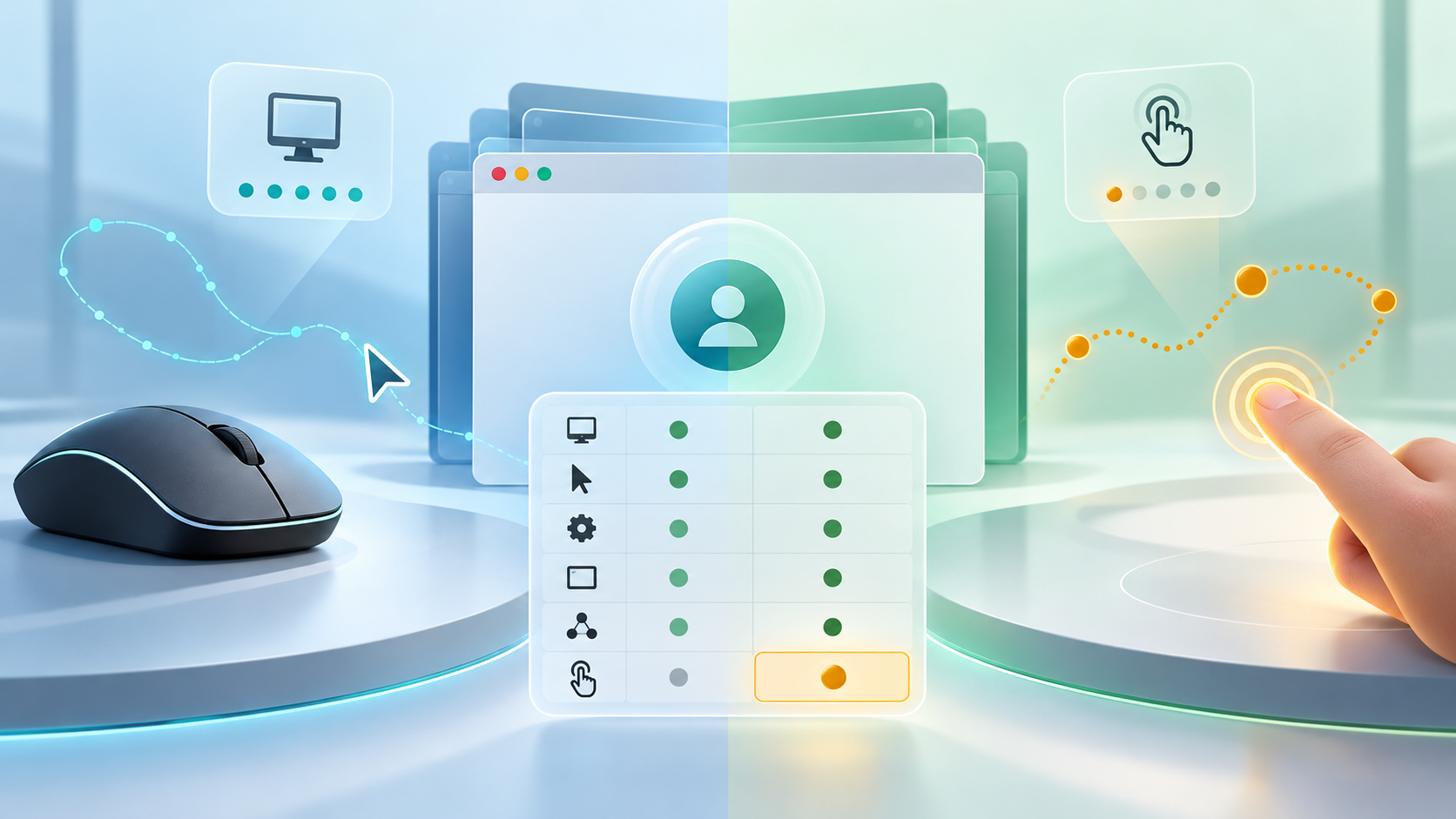
Touch and pointer capability drift occurs when a browser profile reports input-device signals that no longer describe the approved workstation. Before reuse, compare navigator.maxTouchPoints, primary-pointer accuracy, the capabilities of any connected pointer, and hover support under matched test conditions. Pause when a desktop-only environment suddenly reports touch capability, a touch workstation loses it, or the pointer and hover results cannot describe the recorded hardware.
Capture the profile ID, workstation, browser build, operating-system build, connected input devices, test origin, and every observed value before changing a setting. A single result is a clue, not proof: convertible laptops, external mice, pens, remote sessions, and browser updates can legitimately change which capabilities are available.
What Each Input Signal Actually Describes
maxTouchPoints reports the maximum simultaneous touch contacts supported by the device as exposed by the browser. The CSS pointer and hover media features describe the primary input mechanism. any-pointer and any-hover ask whether any available input mechanism has the stated capability. These fields are related, but they are not interchangeable.
A touchscreen laptop with a mouse can reasonably report touch support, a fine pointer, and hover capability together. The review should test whether the set matches the approved profile baseline configuration, not whether every machine looks like a simple desktop or phone.
Build A Matched-Condition Baseline
- Open the assigned profile on its approved workstation.
- Record the browser and operating-system builds.
- List the built-in touchscreen, mouse, trackpad, pen, and remote-session state.
- Record
maxTouchPoints. - Record the results for
pointer: fine,pointer: coarse, andpointer: none. - Record equivalent
any-pointer,hover, andany-hoverresults. - Repeat the capture in the same browser and origin.
Keep the current workstation version baseline beside the result. Input capability data without hardware and session context is too ambiguous for a reuse decision.
Use A Field Matrix Instead Of One Value
| Field | What It Indicates | Mismatch To Investigate |
|---|---|---|
| maxTouchPoints | Maximum simultaneous touch contacts exposed by the device | Changes between zero and a positive value without a hardware, driver, session, or platform change |
| pointer | Accuracy of the primary pointing mechanism | Fine, coarse, or none conflicts with the assigned primary device |
| any-pointer | Whether any connected pointing mechanism has a given accuracy | An expected mouse, pen, or touchscreen capability disappears |
| hover | Whether the primary mechanism can conveniently hover | Hover appears on a touch-only baseline or disappears from an unchanged mouse baseline |
| any-hover | Whether any available mechanism can hover | Result conflicts with connected devices or remote-session conditions |
| Device and session record | Hardware, drivers, peripherals, and execution context | Browser values cannot be explained by the approved environment |
Do Not Treat A Positive Touch Count As Active Touch Use
A positive maxTouchPoints value means the device can support touch contacts; it does not prove that the current interaction came from touch. A hybrid device can expose touch while the operator uses a mouse. Conversely, a mouse does not erase the touchscreen capability.
Record capability and observed interaction separately. Do not infer a device class from one number or rewrite the baseline simply to make a test page display a preferred result.
Separate Primary And Any-Device Results
The primary pointer can be fine while another connected mechanism is coarse. A laptop may therefore match both pointer: fine and any-pointer: coarse. That is coherent when the machine has a trackpad or mouse plus a touchscreen.
Review the combination through the advanced fingerprint review. Flag impossible or unexplained combinations, not every mixed-capability result.
Check Hardware And Session Changes First
- Was the profile moved to another workstation?
- Was a touchscreen, pen, mouse, trackpad, or docking station added or removed?
- Did an operating-system or input driver update occur?
- Was the test run through a remote desktop, virtual machine, or automation host?
- Did the browser build or execution mode change?
- Were both captures taken on the same origin and at the same zoom and window conditions?
These questions establish whether the signal changed because the environment changed. Preserve the first mismatch before reconnecting devices or restarting services.
Retest In A Controlled Order
- Confirm the profile and workstation IDs.
- Close normal account work and preserve the mismatch record.
- Run the same test twice in the assigned browser.
- Restart only the browser and repeat.
- Repeat with the approved peripherals unchanged.
- If automation normally opens the profile, use one controlled profile launch and compare results.
- Change one device or session condition at a time only when diagnosis requires it.
This order separates a one-run page error from stable browser output and then from hardware or session effects. Avoid broad resets that erase the evidence.
Compare Touch Signals With The Wider Profile
Input signals should be reviewed beside operating system, platform, screen and viewport, mobile state, User-Agent and Client Hints, device memory, CPU count, media devices, and workstation assignment. A mobile operating system and touch-only capability can form one coherent environment. A desktop platform, mouse-only hardware record, and unexplained multi-touch value need closer review.
Network settings are not direct causes of touch capability, but keep the assigned proxy route configuration unchanged during the test so the operator does not confuse two simultaneous environment changes.
Classify The Reuse Decision
| Result | Evidence | Decision |
|---|---|---|
| Consistent | Touch count, primary pointer, any-pointer, hover, and device record describe one approved environment | Continue the broader reuse checklist |
| Expected device change | Signal movement matches a documented peripheral, driver, workstation, or session change | Review and update the baseline after approval |
| Test-condition difference | Different browser, origin, execution mode, or session explains the result | Repeat under matched conditions |
| Contradictory drift | Stable values conflict with the recorded hardware or with each other | Pause reuse and inspect configuration |
| Transient | The mismatch disappears and cannot be reproduced after a browser-only retest | Record it and complete one additional controlled run |
| Unresolved | The baseline, hardware record, or test conditions are incomplete | Hold and escalate to the profile owner |
Define Pass, Fail, And Stop Conditions
Pass when two matched-condition captures are stable and the complete signal set agrees with the approved hardware and session record. Fail when reproducible values contradict that record without an approved change. Treat mixed results as ambiguous when peripherals, remote sessions, or the primary input mechanism are unknown.
Stop before reuse when the profile moved workstations without a handoff, an input capability changes repeatedly, the primary and any-device values cannot be explained, or the team would need to guess which baseline is correct.
Record A Compact Evidence Set
- Profile ID and owner
- Workstation, OS, browser build, and launch method
- Connected input devices and remote-session state
- Test origin and timestamp
- maxTouchPoints and all pointer and hover media-query results
- First capture, repeated capture, and changed condition
- Expected reason for movement, reviewer, and reuse decision
Attach this evidence to the profile reuse checklist. The record should let another operator reproduce the decision without opening the profile for normal work.
Common Diagnostic Mistakes
- Using only
maxTouchPointsto label a device as desktop or mobile. - Assuming primary-pointer and any-pointer results must be identical.
- Comparing a local desktop run with a remote or virtual session.
- Changing several settings before preserving the first mismatch.
- Treating a browser update as proof that every hardware capability should change.
- Approving reuse without the workstation and peripheral record.
A Practical Review Order
Use this sequence: preserve the first result, verify profile and workstation identity, inventory input devices, repeat the same-origin capture, compare primary and any-device signals, check session and driver changes, compare related fingerprint fields, classify the result, and document the decision. Only then continue normal profile work.
The goal is a coherent, reviewable environment rather than a particular touch count. Stable evidence and explicit stop conditions make touch and pointer capability drift manageable without unsupported claims about anonymity, safety, or account outcomes.