
- 1 What Counts as a Timezone Mismatch
- 2 Quick Decision Table: Continue, Correct, or Pause
- 3 1. Start With the Account’s Expected Region
- 4 2. Compare Proxy Region Before Browser Timezone
- 5 3. Check Browser Timezone, Language, and Locale Together
- 6 4. Review WebRTC and Fingerprint Signals
- 7 5. Check Cookies and Storage Before Reuse
- 8 6. Write a Timezone Change Note
- 9 When to Stop Instead of Correcting the Timezone
- 10 Final Checklist
A timezone mismatch is easy to dismiss as a small setting issue. In multi-account work, it is usually a consistency issue: the account may expect one region, the proxy may exit from another, and the browser profile may still carry language, storage, or fingerprint signals from a previous workflow.
The right response is not to change every field quickly. Start by proving which signal is wrong. Then decide whether the profile can continue, needs a documented correction, or should be paused until the account owner reviews the environment.
What Counts as a Timezone Mismatch
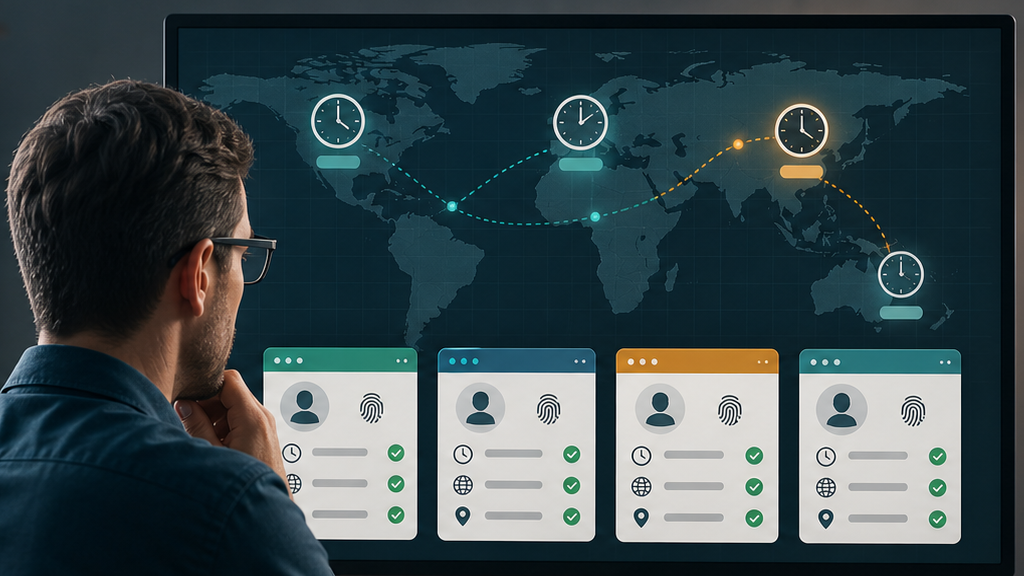
A timezone mismatch happens when the browser environment, network route, and account history do not describe the same operating context. The visible clock is only one part of the check. You also need to compare the proxy region, browser language, platform account region, session history, and browser fingerprint behavior.
This check belongs beside a broader profile isolation checklist. Isolation answers whether the profile is tied to one account environment. Timezone review answers whether that environment still looks internally consistent before the next login.
Quick Decision Table: Continue, Correct, or Pause
| Signal | Pass condition | Mismatch warning | Decision |
|---|---|---|---|
| Proxy region | Outbound IP region matches the assigned account region | Proxy exits from a country or city no one recorded | Pause until the route is confirmed |
| Browser timezone | Timezone matches the intended operating region | Timezone follows the operator device instead of the profile plan | Correct only with a logged reason |
| Browser language | Language fits the account, market, and previous profile history | Language changed during troubleshooting or handoff | Review with the account owner |
| WebRTC behavior | Local and public IP exposure are understood and expected | WebRTC exposes a conflicting local or route signal | Run a leak check before login |
| Storage and session state | Cookies and site storage belong to the same account context | Old sessions conflict with the current region plan | Pause reuse or rebuild the environment |
| Handoff note | Last operator, last task, and last region change are recorded | No one can explain the current timezone or proxy choice | Do not continue sensitive work |
1. Start With the Account’s Expected Region
Before checking browser settings, write down the account’s expected region. Use the account owner, platform market, billing or registration context, and normal operating location. This gives the team a reference point instead of letting the current profile settings define the answer.
If the account region is unclear, stop there. Changing timezone settings without knowing the account’s intended context can make the profile harder to review later. A clean decision starts with a known account environment, not a convenient browser setting.
- Account or platform reference
- Assigned market or operating region
- Expected proxy country or city
- Expected browser language
- Last successful login region
- Last operator and last task
2. Compare Proxy Region Before Browser Timezone
Check the actual outbound IP before changing the timezone. A profile may show the right timezone while the proxy route is wrong, stale, rotating unexpectedly, or assigned to another account. In that case, the timezone is not the root issue.
For teams that rotate or replace proxies, keep this review separate from ordinary troubleshooting. The existing proxy rotation rules can help decide whether a stable route matters more than a fast change. For timezone mismatches, stability usually matters because the account history needs to stay explainable.
3. Check Browser Timezone, Language, and Locale Together
Timezone should be reviewed with language and locale signals. A profile using a Tokyo timezone, English browser language, and a United States proxy may be valid for a specific operator workflow, but it needs a documented reason. Without that reason, the next teammate cannot tell whether the setup is intentional or accidental.
Do not rely on one field. Compare system timezone behavior, browser-level timezone handling, accept-language behavior, date formatting, and account interface language. If those signals changed after a support task or temporary handoff, record the change before returning the profile to normal work.
4. Review WebRTC and Fingerprint Signals
Timezone consistency is part of browser fingerprint consistency. WebRTC behavior, Canvas behavior, WebGL, user agent, screen size, hardware hints, and language can all make a profile easier or harder to reason about. The goal is not to promise invisibility. The goal is to keep the account environment consistent with its own history.
Use a focused WebRTC leak check when IP behavior is unclear, then use a Canvas fingerprint consistency review if device-style signals changed around the same time. Run these checks before opening sensitive account pages, not after a problem appears.
5. Check Cookies and Storage Before Reuse
A timezone correction can still be risky if the storage history tells a different story. Cookies, local storage, IndexedDB, cache, and service workers may show that the profile was recently used under another account, market, or troubleshooting context.
Before reuse, compare the timezone finding with your existing storage partition checklist. If storage belongs to the same account and the proxy-timezone-language signals line up, the profile may continue. If storage belongs to a different task, pause and rebuild rather than forcing a quick setting change.
6. Write a Timezone Change Note
Every timezone correction should leave a short note. This is especially important when a profile moves between operators or clients. The next person should be able to see what changed, why it changed, and which checks passed afterward.
Use this record format:
- Profile name or internal ID
- Account reference and expected region
- Previous timezone, new timezone, and reason for change
- Proxy host or route checked
- Language and locale checked
- WebRTC or fingerprint checks completed
- Storage/session state reviewed
- Final decision: continue, correct, pause, or rebuild
This note should connect to a broader browser profile change log. A timezone fix is not just a setting update. It is a change to the account environment’s evidence trail.
When to Stop Instead of Correcting the Timezone
Stop when the account’s expected region is unknown, the proxy route cannot be verified, WebRTC exposes an unexpected route, cookies or storage belong to another account, or the previous operator cannot explain why the timezone changed. In those cases, a quick correction may hide the problem instead of solving it.
Lalicat can help teams separate browser profiles for multi-account operations, but the operating rule still matters: each profile should have a clear account purpose, proxy context, timezone plan, storage history, and handoff record. If those pieces line up, continue. If they do not, pause before the next login.
Final Checklist
- Confirm the account’s expected region before changing settings.
- Verify the actual outbound proxy region.
- Compare timezone, browser language, and locale behavior together.
- Check WebRTC and fingerprint signals before sensitive account work.
- Review cookies and storage for conflicting account history.
- Record every timezone correction in the profile change log.
A timezone mismatch is useful because it exposes a decision point. If the mismatch has a clear cause and the surrounding profile signals pass, correct it and record the reason. If the cause is unclear, treat the profile as unready until the account environment can be explained.